Everyday wardrobe
Replace the gown instruction with a navy linen blazer over a plain white shirt. Keep the existing trousers, pose and background.
Explore a wardrobe idea without reshooting your portrait. This workflow changes the clothing in a reference photo while asking the model to preserve the person and scene. Use it to sketch an editorial direction, visualize a color palette or plan a creative shoot.
Use one clear portrait or full-body photo that you have permission to edit. Choose an image with visible clothing edges and enough space around the subject. A JPG, PNG or WebP up to 4 MB works in the studio. The workflow cannot take a separate garment photo alongside the portrait.
Opening the preset uses no credits. Review the prompt and quote before generating. A signed-in account, active plan and enough credits are required. See plans.
Edit this brief for your own subject. It is a set of instructions to try, not a guarantee that every detail will be preserved.
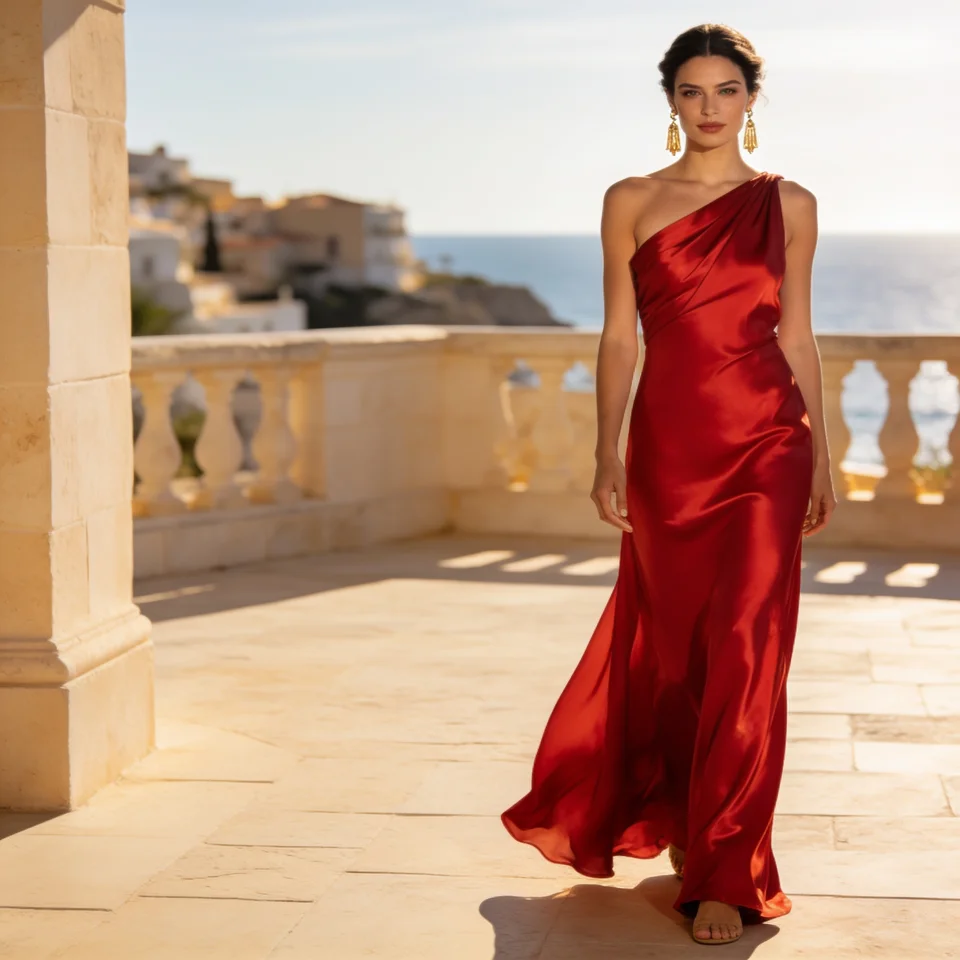
Replace the person's outfit with a flowing crimson one-shoulder evening gown. Keep their face, hairstyle, pose, hands, and the background unchanged. Match the original lighting, with natural fabric folds and realistic seams. Change only the clothing.
Begin with the dress, jacket or shirt. Keep the same camera angle and pose for the first attempt so the change is easier to judge.
Specify the color, fabric, sleeve length and neckline. Ask for believable folds, seams and lighting rather than just a different outfit.
Compare face, hair, hands and body proportions with your source. Revise one prompt detail if the outfit or preserved features drift.
Replace the gown instruction with a navy linen blazer over a plain white shirt. Keep the existing trousers, pose and background.
Request the same cut and fabric with only a new color. Compare results side by side before trying a different silhouette.
Image editing currently accepts one reference per request. Describe the garment in words; this workflow does not transfer a second uploaded garment photo.
The model generates a new image and may change details even when asked to preserve them. Review every result against the original before sharing.
Read the full image editing guide, compare model settings and credit costs, or return to all examples.
Turn a pet photo into a short AI video in Spicy Mayo. Start with a head tilt and paw movement, use H3 Max, and review markings and motion.
Explore the workflowMake a short dance-inspired AI clip in Spicy Mayo. Prepare a full-body reference, try controlled footwork, and inspect feet, likeness and motion.
Explore the workflow
