A real edit: orange chair to cherry red
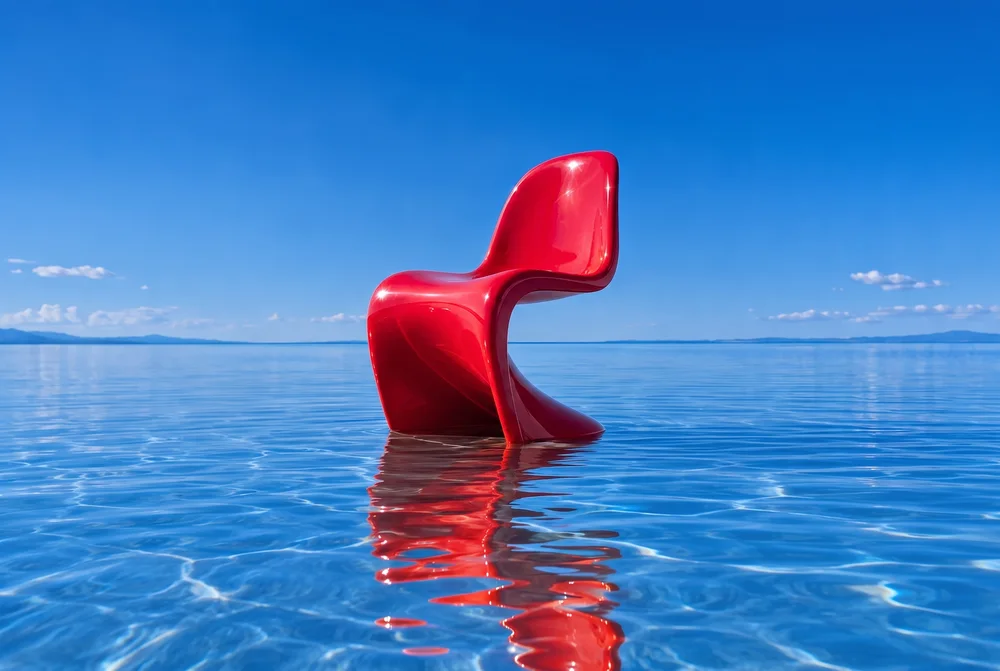
We uploaded the studio’s orange-chair sample to Spicymayo and asked Nano Banana Pro to change the chair’s color. The request used a 3:2 aspect ratio and 2K output. The edit completed, downloaded as a PNG, and used one credit on our earlier pricing scale (50 credits on current plans).

The exact prompt
Change the orange chair to a glossy bright cherry red chair. Preserve the chair shape, the blue water, reflection, background, and composition.
The chair became red and the broad scene stayed recognizable. Reflections and small details were re-rendered rather than copied pixel for pixel. This is one illustrative result, not a guarantee that every prompt or subject will behave the same way.
Try the same workflow
Open Edit image
In the Spicymayo studio, choose Edit image. Upload one JPG, PNG, or WebP under 4 MB. The “A change of scenery” sample card also loads a reference image for you.
Describe one specific change
Say what to change and what to keep. A color change is a useful starting point because you can compare the result directly with the reference. The background, restyle, relight, and product-shot shortcuts can help you draft a prompt.
Choose aspect ratio and resolution
Pick an aspect ratio suited to the composition. On current plans, 2K uses 50 credits, while 4K uses 100. Choosing a different aspect ratio may change the framing, so use the reference’s ratio when preserving composition matters.
Generate, review, and download
Sign in and use available subscription credits to generate the edit. Open the result’s large preview, check the subject and background, and download the PNG. Reuse prompt loads the text and settings for a new creation; add a reference image again if you want another edit.
A prompt structure you can reuse
Change [one element] to [specific result]. Preserve [subject details], [composition], and [background elements]. Match [lighting or reflection requirement].
For example: “Replace the background with an ivory studio backdrop. Preserve the bottle’s shape, label, and blue cap. Add a soft contact shadow consistent with light from the left.” Treat this as a starting prompt, and check the label and geometry in the output.
Check these details before publishing
- Shape: did the subject’s silhouette or proportions change?
- Text: are labels, signs, and logos still accurate and readable?
- Light: do highlights, reflections, and shadows agree with the new scene?
- Composition: are the crop and important objects where you expected?
If too much changed, simplify the next prompt and state what must remain consistent. Generated results vary. Keep a copy of the original and download outputs you want to retain.
Costs and limits for this workflow
This Spicy Mayo example uses Nano Banana Pro for the edit. Other image models are available in the studio. The reference upload limit is 4 MB and one image per request with Nano Banana Pro; Nano Banana 2.1 accepts up to four reference photos per edit at 30–60 credits. The monthly plan is US$29.99 for 2,200 credits, with no rollover; each edit uses 50 credits at 2K or 100 at 4K. Failed generations return reserved credits. Read the pricing details and check the studio for current subscription availability.