Light cleanup
Ask only for dust removal and gentle contrast balancing. This is a useful first pass when most of the original is intact.
Use a restrained edit to reduce dust, fine scratches and faded contrast in a scanned photograph. The goal is a cleaner interpretation that respects the original image. AI reconstruction is not evidence of what an obscured historical detail actually looked like.
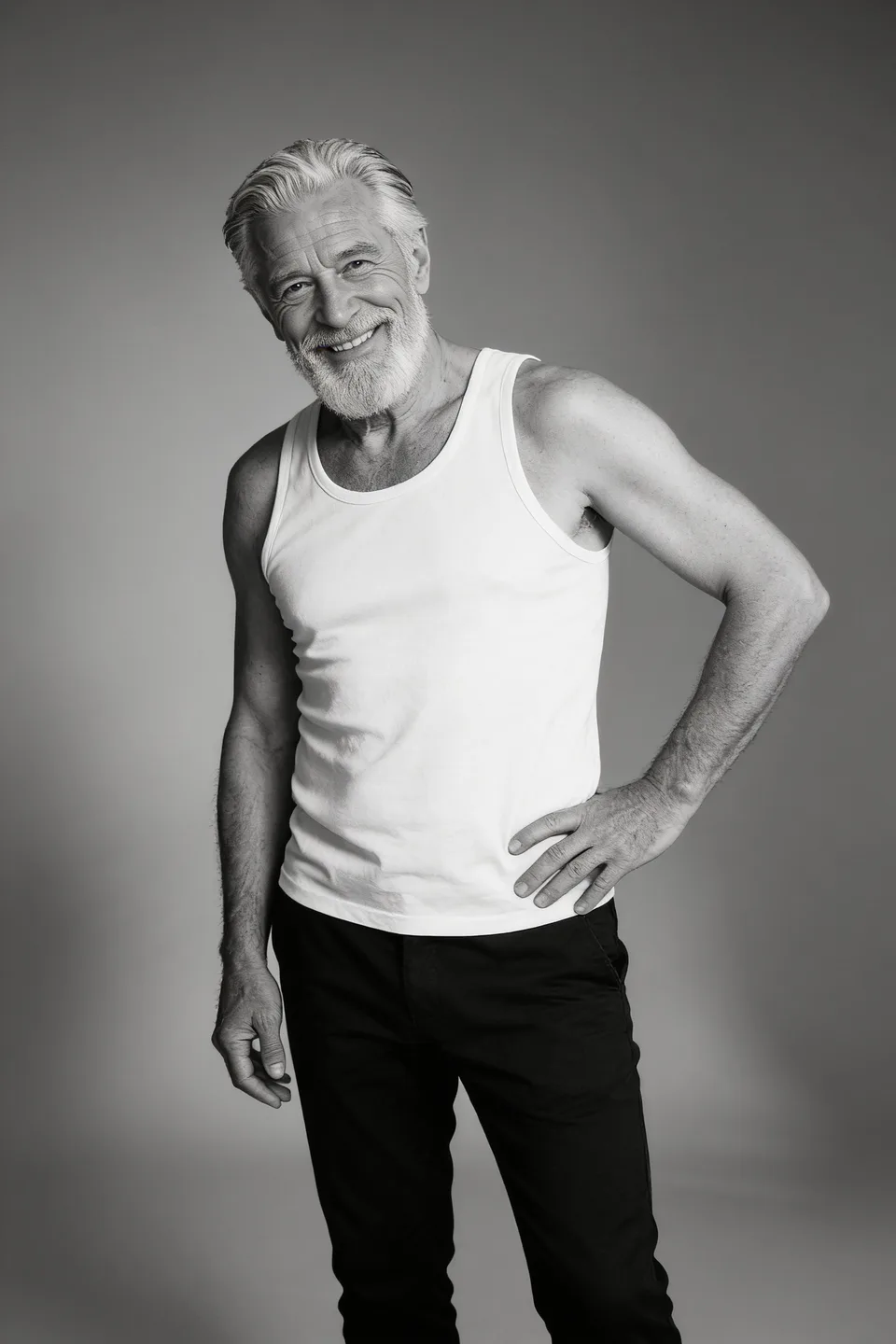
Start with the clearest scan you have. Keep an untouched archival copy and upload a working JPG, PNG or WebP up to 4 MB. Avoid aggressively sharpening the source before uploading; that can make damaged edges harder to distinguish from real detail.
Opening the preset uses no credits. Review the prompt and quote before generating. A signed-in account, active plan and enough credits are required. See plans.
Edit this brief for your own subject. It is a set of instructions to try, not a guarantee that every detail will be preserved.
Carefully restore this scanned photograph. Reduce surface dust, fine scratches, and discoloration; gently rebalance faded contrast. Preserve the people, facial features, age, expression, clothing, objects, framing, and period character. Retain monochrome if the original is black and white. Do not modernize the scene, invent missing people or text, or over-smooth texture.
Ask to reduce dust and light scratches before changing color or rebuilding missing areas. Retain monochrome if the original is black and white.
Name clothing, facial features, age, expression and framing as things to preserve. Avoid instructions that modernize the scene.
Inspect faces, hands, lettering and damaged areas. Keep both versions and label the new version as AI-restored when its provenance matters.
Ask only for dust removal and gentle contrast balancing. This is a useful first pass when most of the original is intact.
Explicitly retain the grain and slightly faded tones while reducing a few distracting scratches. Cleaner does not have to mean contemporary.
No. Missing information is reconstructed as an interpretation. Do not treat invented detail as a historically accurate recovery.
No. The portrait is illustrative artwork for this workflow. A verified color-edit comparison is available in our Nano Banana Pro guide.
Read the full image editing guide, compare model settings and credit costs, or return to all examples.
Turn a pet photo into a short AI video in Spicy Mayo. Start with a head tilt and paw movement, use H3 Max, and review markings and motion.
Explore the workflowMake a short dance-inspired AI clip in Spicy Mayo. Prepare a full-body reference, try controlled footwork, and inspect feet, likeness and motion.
Explore the workflow
